CRM
Access the business module
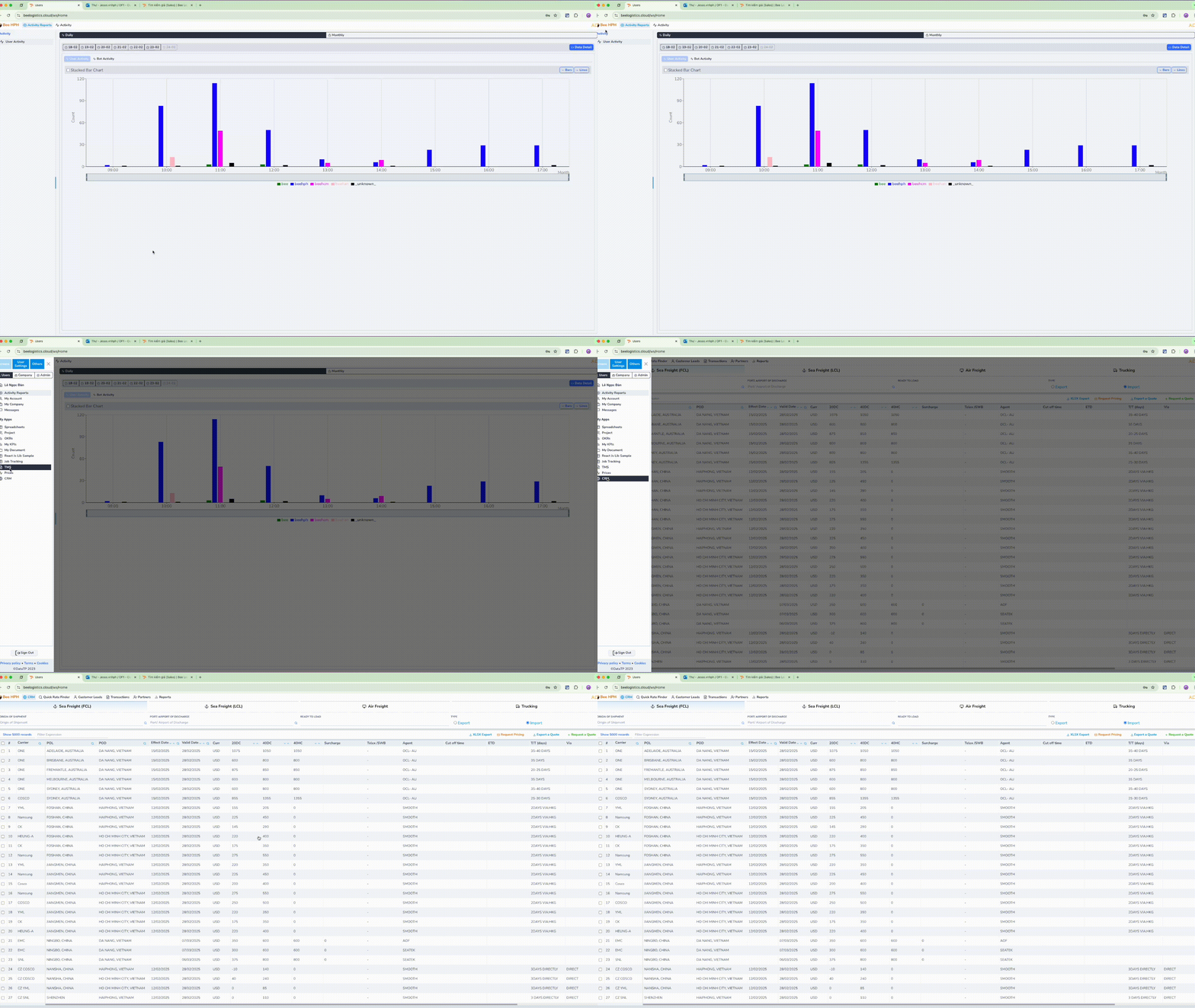
On the top left corner, click the company logo -> select CRM.
Overview of the Quotation Process.
View detailed process
┌───────────────┐     ┌───────────────────────┐
│  Customer     │────▶│  Sales receives       │
│  sends request│     │  information          │
└───────────────┘     └──────────┬────────────┘
                                 │
                                 ▼
┌───────────────────────────────────────────────────────────────────────────┐
│                        Check price on the system                         │
└───────────┬───────────────────────────────────────┬───────────────────────┘
            │                                       │
            ▼                                       ▼
┌───────────────────────┐                  ┌───────────────────────────┐
│  Price available      │                  │  Price not available      │
└──────────┬────────────┘                  └───────────┬───────────────┘
           │                                           │
           ▼                                           ▼
┌────────────────────────────┐             ┌───────────────────────────┐
│  Request a Quote           │             │  Request Pricing          │
│  on the toolbar            │             │  on the toolbar           │
└──────────┬─────────────────┘             └───────────┬───────────────┘
           │                                           │
           ▼                                           ▼
┌────────────────────────────┐             ┌───────────────────────────┐
│  Create Inquiry Request    │             │  Create Inquiry Request   │
│  (no email sent)           │             │  (email sent automatically)│
└──────────┬─────────────────┘             └───────────┬───────────────┘
           │                                           │
           │                                           ▼
           │                              ┌─────────────────────────────┐
           │      ┌─────────────────────┐ │  Pricing Department         │
           └─────▶│  Request Pricing    │ │  updates information        │
           │      │(optional email)     │ └───────────┬─────────────────┘
           │      └─────────┬───────────┘             │
           │                │                         │
           │                ▼                         │
           │     ┌────────────────────────┐           │
           │     │ Pricing updates info   │           │
           │     │ (if any)               │           │
           │     └─────────┬──────────────┘           │
           │               │                          │
           ▼               ▼                          ▼
┌───────────────────────────────────────────────────────────────────────────┐
│                Create Quotation and send to customer                      │
└───────────────────────────────────────┬───────────────────────────────────┘
                                        │
                                        ▼
┌───────────────────────────────────────────────────────────────────────────┐
│                         Create Internal Booking                           │
└───────────────────────────────────────┬───────────────────────────────────┘
                                        │
                                        ▼
┌───────────────────────────────────────────────────────────────────────────┐
│         Update Inquiry Request status to "won"                            │
└───────────────────────────────────────────────────────────────────────────┘
1. Receive customer request.
- Sales receives information from the customer.
2. Check and process price on CRM/System.
Sales checks the price on the CRM application. See instructions for searching prices here
-
Case 1: Price is available.
-
Sales selects the price in the table and clicks the
Request a Quotebutton on the toolbar.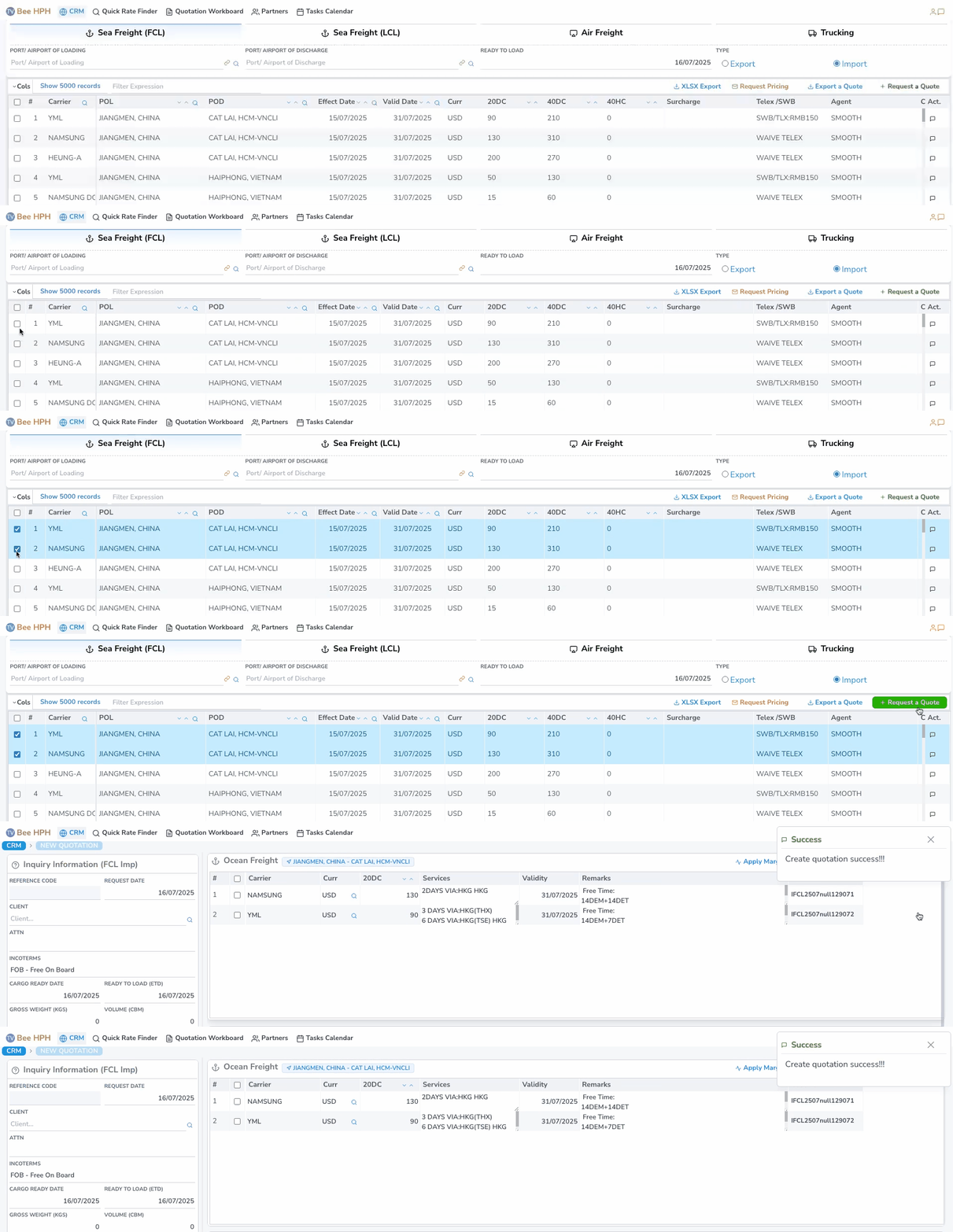
-
The system automatically creates a corresponding Inquiry Request (no email sent) and switches to the
Quotation Formscreen - enter quotation information. -
Sales can resend the request to Pricing by clicking the
Request Pricingfunction button to confirm with pricing (optional).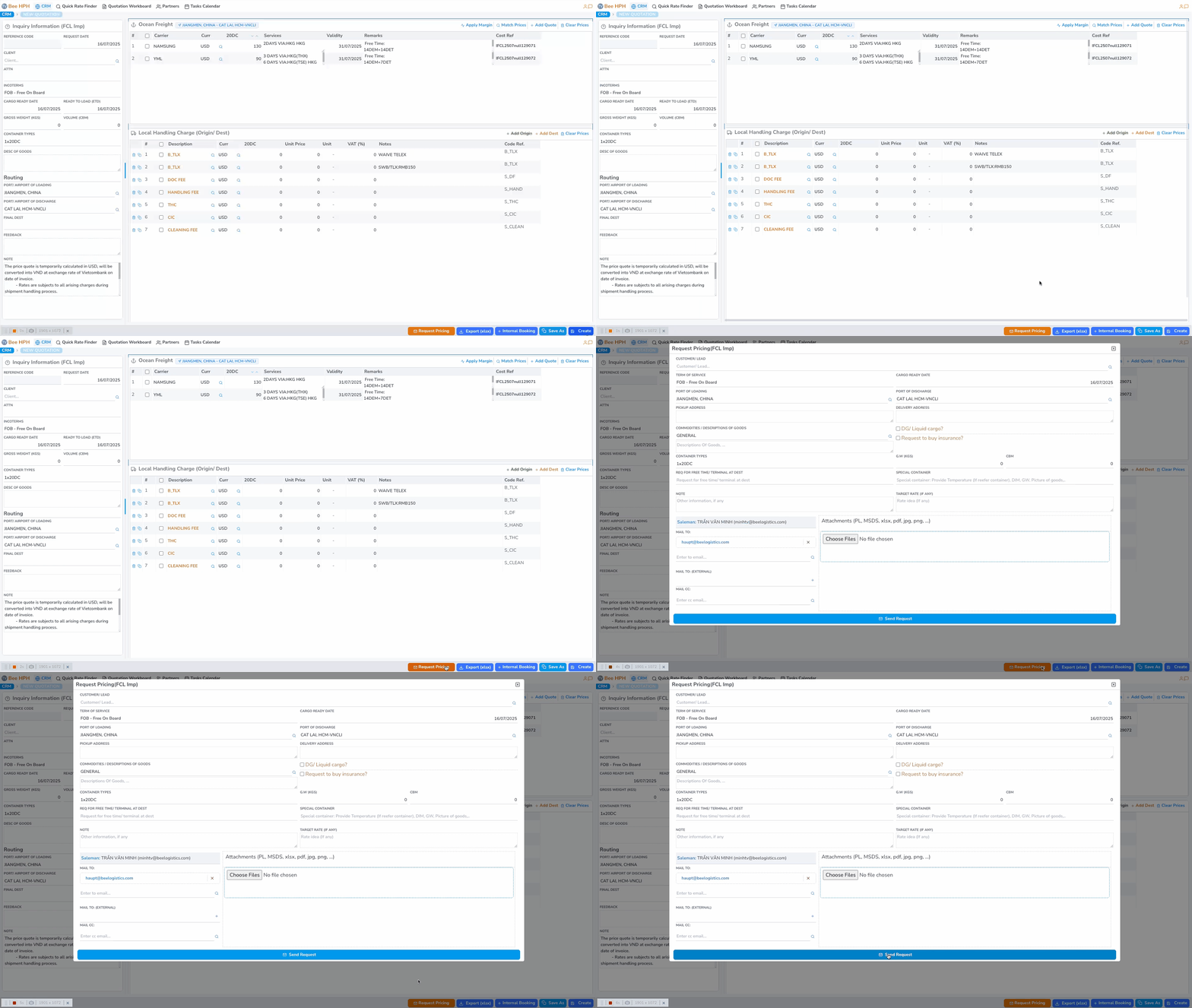 See instructions for sending price confirmation request here
 -
See detailed steps to create, edit, and send quotations here.
-
-
Case 2: Price is not available.
-
Sales uses the Request Pricing function on the toolbar, the system creates and sends an email to the Pricing department.

Note: For each service (Sea/ Air/ Truck) and Import/ Export, make sure to select the correct option on the screen before clicking the Request Pricing button.
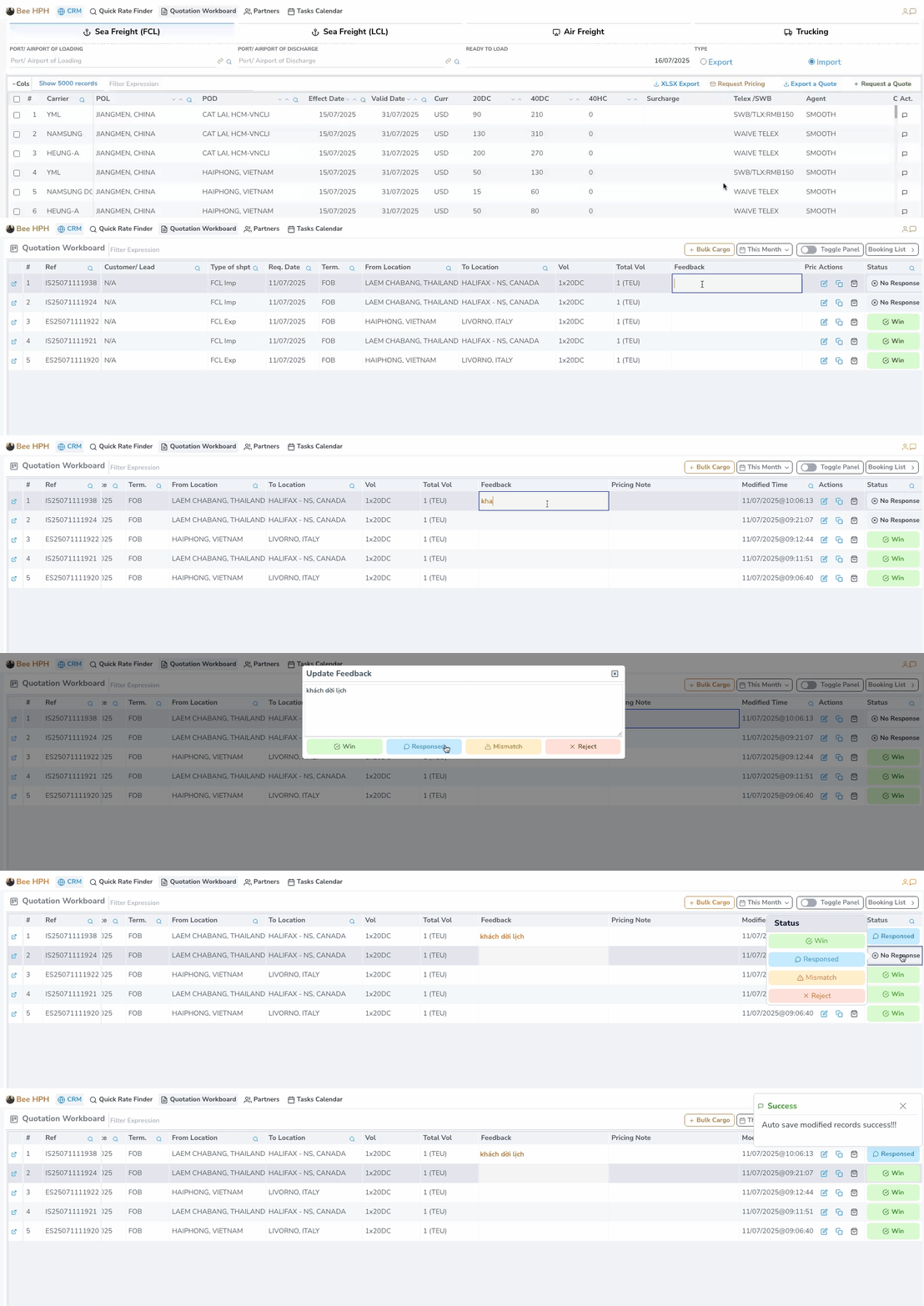
See instructions for sending price check request here+-------------------------+ +-------------------------------+ +--------------------------+
| Receive final price | --> | Update customer feedback, | --> | Create quotation & send |
| from Pricing | | update status (Win/Mismatch) | | email to customer |
+-------------------------+ +-------------------------------+ +--------------------------+
-
3. Create, send quotation and confirm booking. See detailed instructions here
-
Sales edits the quotation (add other costs, margin, etc.).
-
Export the quotation to Excel file (
Export (Excel)) or send email directly to the customer (Email sending is pending). -
Sales creates Internal Booking and sends it to Customer Service with the previously entered selling information.
-
When Internal Booking is sent successfully:
- The system automatically updates the Inquiry Request status to "won".
- The system automatically sends a Zalo notification to
Customer Serviceabout theInternal Bookinginformation. - The system automatically updates the price feedback table, marking that price as won for the shipment with information: salesman name, volume, cargo details.
Instructions for other functions in CRM.
1. Create and manage potential customer information (Lead / Agent Potential).
See detailed instructions here
2. Create and manage customer information.
See detailed instructions here
3. Manage create request for Customer/Agent/Coloader.
See detailed instructions here
4. Create and manage tasks, reports for sales staff.
See detailed instructions here
5. Partner Reports.
-
Key Account Performance Report. See detailed instructions here
-
Partners Catalog. See detailed instructions here