Task Request - Software Support Request Tool
Purpose: A systematic tool for sending support requests and reporting software issues.
🚀 How to Access
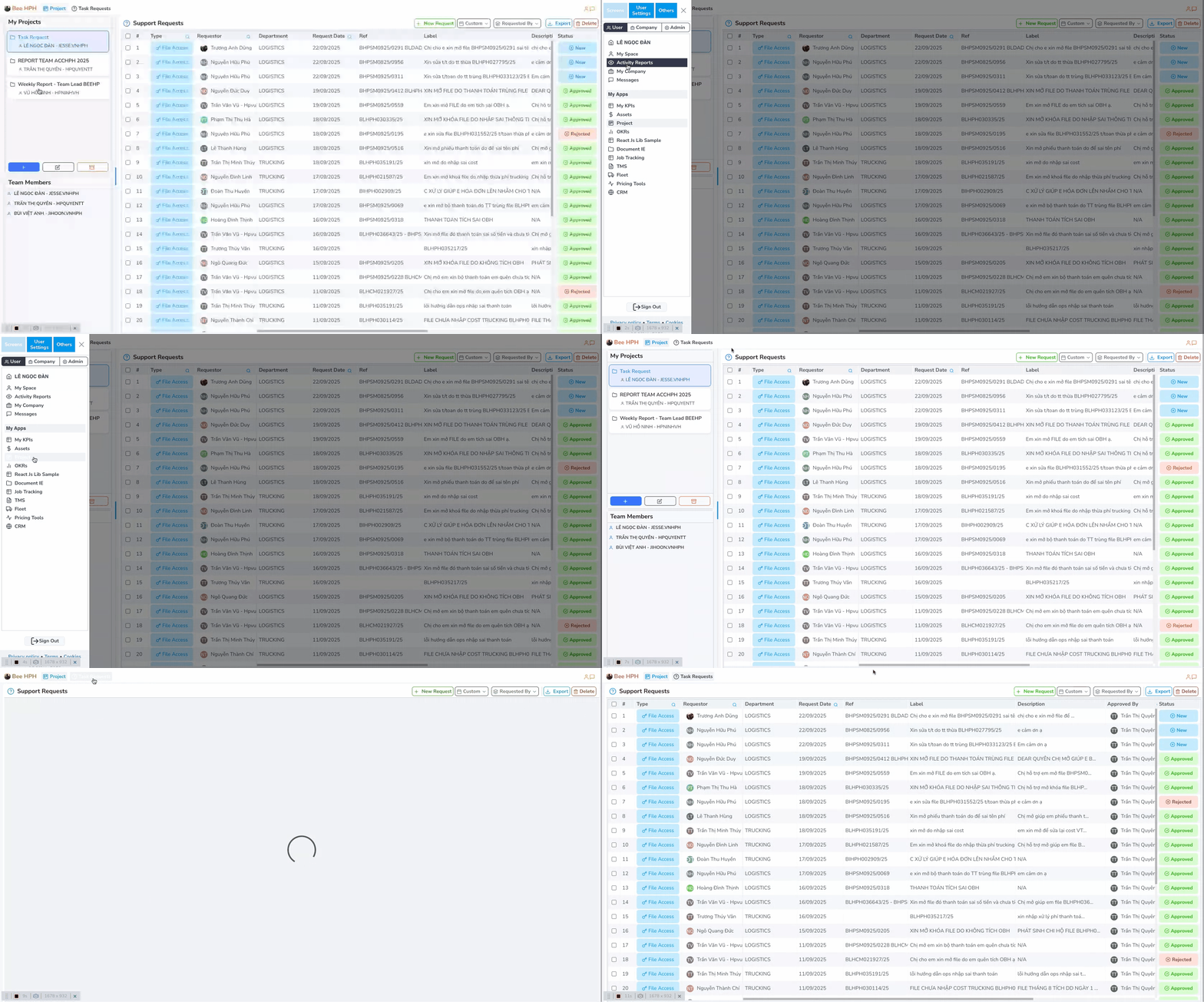
Step 1: Go to business module
- Left corner of screen → Click on company logo
- Select User → Project → Task Requests
👤 Part 1: Request Sender
Create New Request
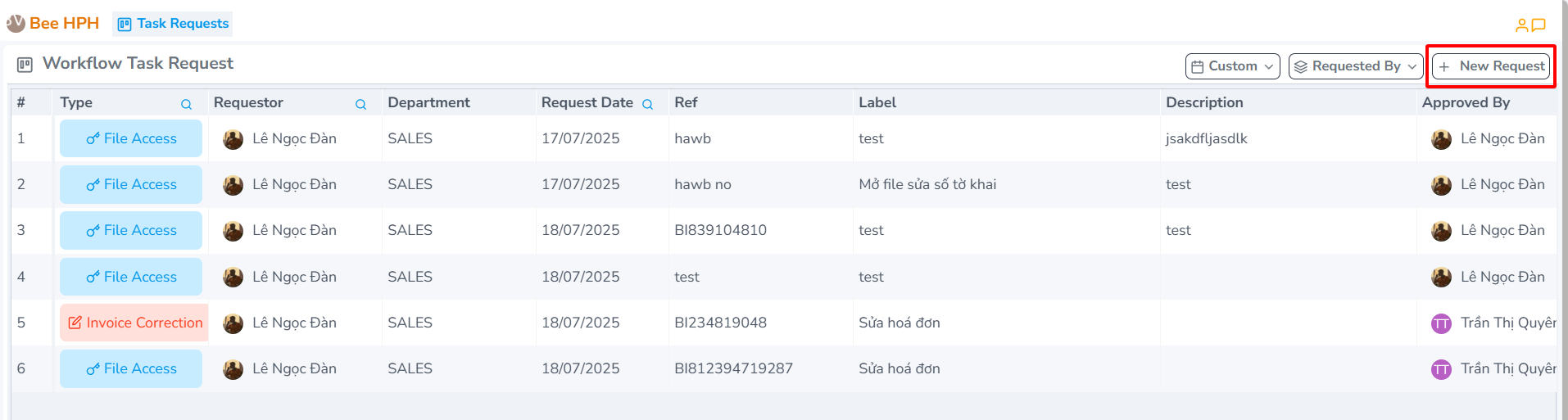
Step 1: Create request
- Click "New Request" button in the top right corner of screen
Step 2: Fill in request information
- "New Task Request" dialog will appear
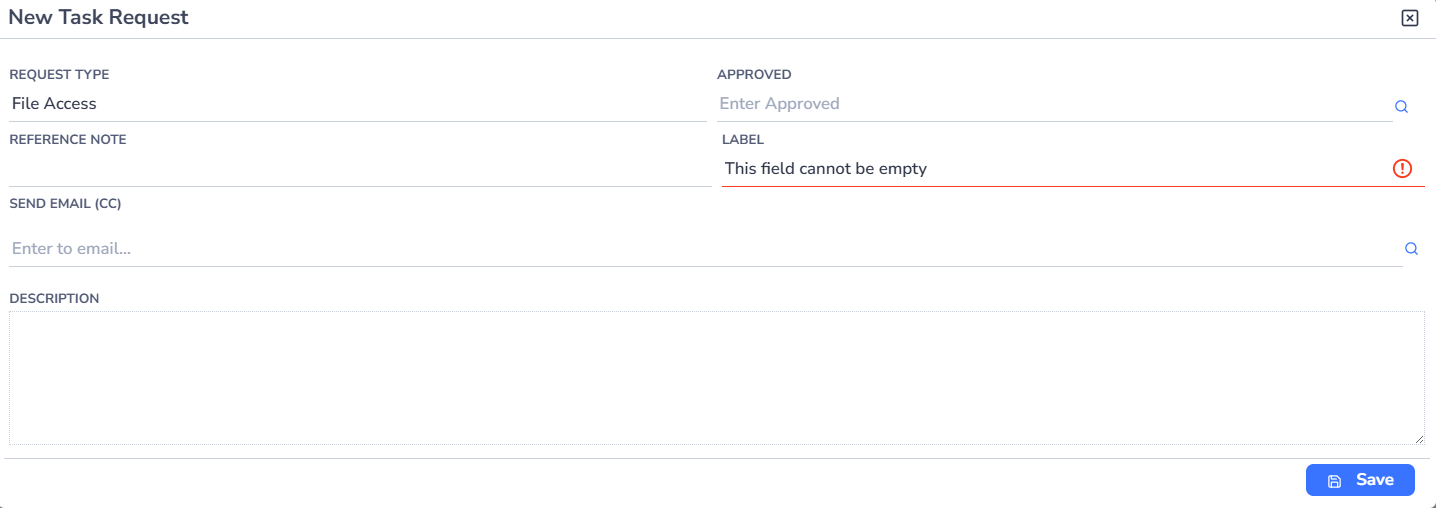
📝 Information Filling Guide
Required Fields:
| Field | Description | Example |
|---|---|---|
| Request Type | Type of request | File Access (file unlock) Invoice Correction (invoice adjustment) |
| Approved | Request handler | Ms. Quyen Accounting |
| Reference Note | Reference number | FILE number or HBL number |
| Label | Brief title | "REQUEST FILE UNLOCK DUE TO ABC..." |
| Send Email (Cc) | Related persons | Department head, other related parties |
| Description | Detailed description | "Customer ABC changed address..." |
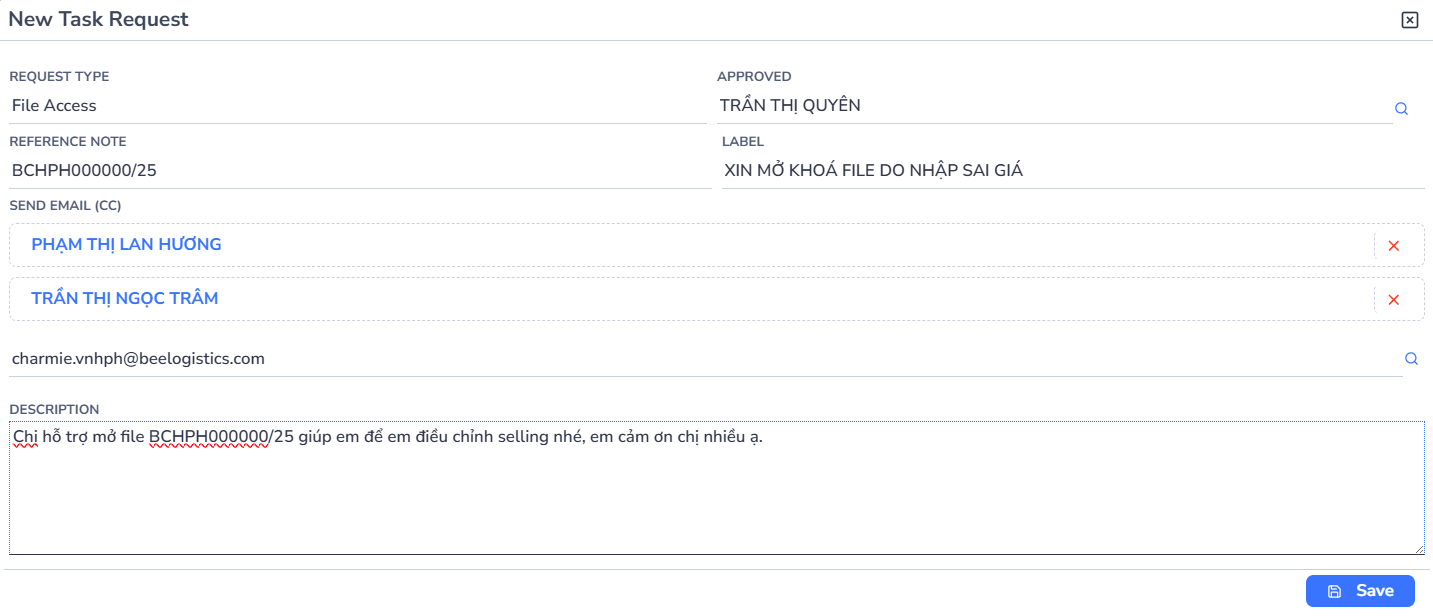
Form Filling Illustration:
 Select request type
 Select handler
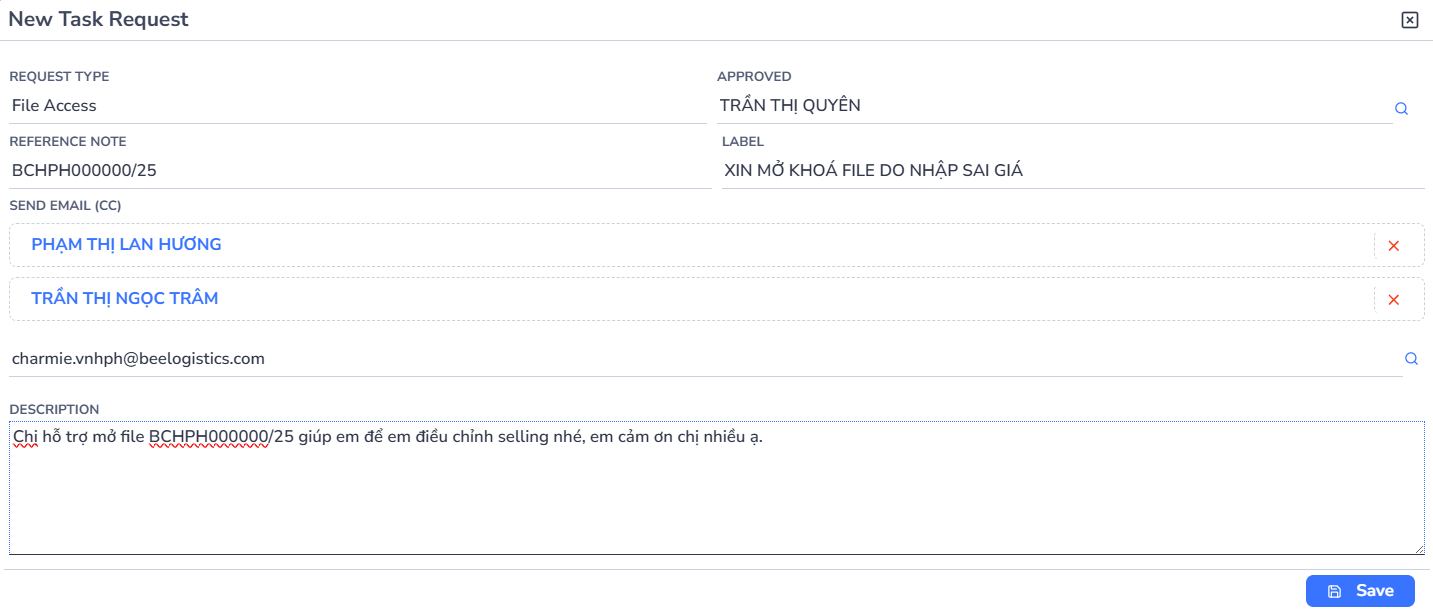 Example of fully completed form
Step 3: Save and send
- Click "Save" to send the request
📊 Manage Sent Requests
- All requests will be displayed in the summary table
- Note: To delete a request, please contact IT
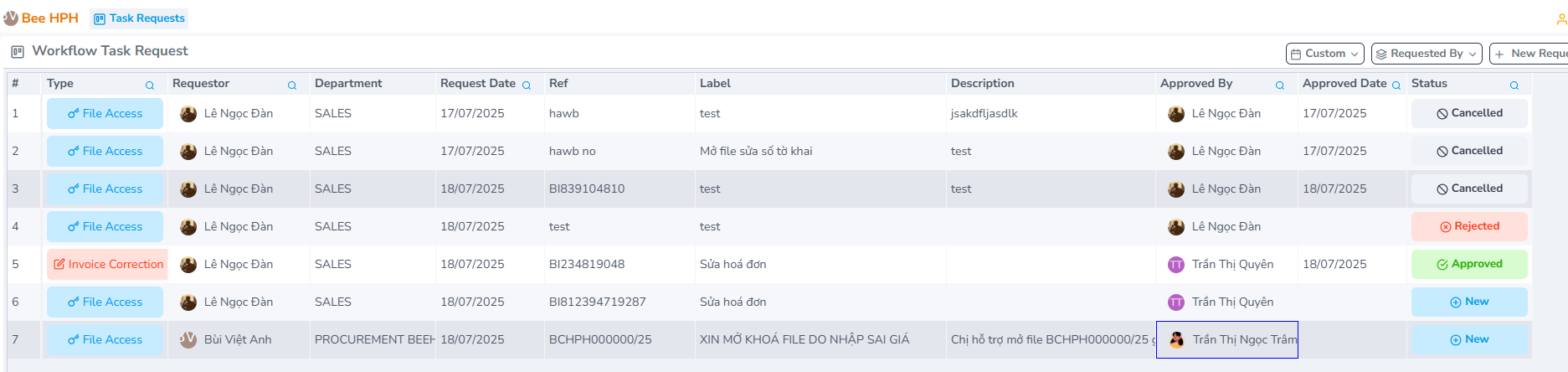
🔐 View Permissions:
Each account can only see:
- Requests they have sent
- Requests sent to them
- Requests they are CC'd on
📧 Response Notifications
When there is a response, the system will send email notifications to:
- Request sender
- Those who are CC'd
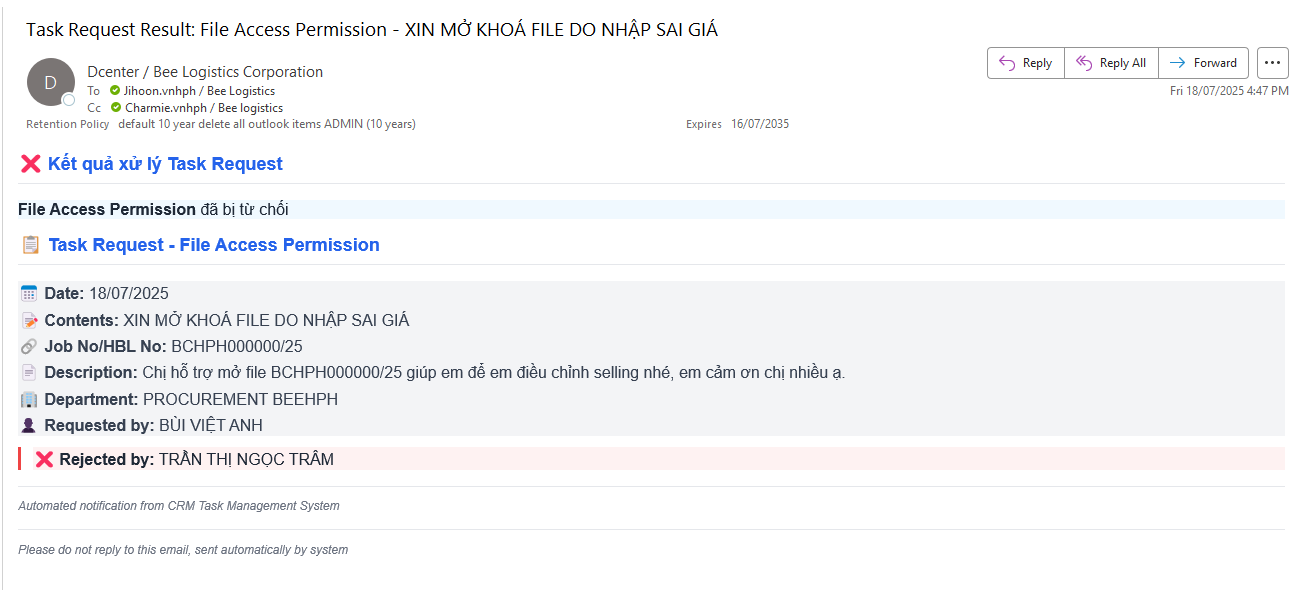
👥 Part 2: Request Receiver and Handler
📨 Receive Notifications
When there is a new request, the handler will receive email notifications from the system.
⚡ How to Handle Requests
Response Options:
- ✅ Approved (Accept)
- ❌ Reject (Decline)
Response Locations:
- Directly via email
- Or on the CRM system
📈 Advanced Features
📋 Export Excel
- Compile multiple requests into Excel file
- Support batch processing
🏷️ Priority Level Assessment
After processing, the receiver will assess the request priority level:
| Level | Meaning |
|---|---|
| 🟢 Low | Low priority |
| 🟡 Medium | Medium priority |
| 🔴 High | High priority |
💡 Important Notes
✅ Checklist before sending request:
- Selected correct request type
- Selected correct handler
- Filled in complete reference information
- Brief and clear title
- CC'd relevant persons
- Detailed and clear problem description
🎯 Tips for quick processing:
- High priority: Urgent files, affecting operations
- Medium priority: Regular information adjustments
- Low priority: Non-urgent requests, can wait
📞 Support:
- System errors: Contact IT
- User guide: Refer to this documentation
- Emergency: Call the handler directly
🔄 Request Workflow
- Create → Fill form with complete information
- Submit → System sends notification to handler
- Process → Handler reviews and responds
- Notify → System sends response to requester
- Track → Monitor status in the system
📋 Common Request Types
| Request Type | Description | Processing Time |
|---|---|---|
| File Access | Unlock locked files | 1-2 hours |
| Invoice Correction | Adjust invoice information | 1-2 business days |
| Data Update | Update customer/shipment data | 2-4 hours |
| System Access | Grant/revoke system permissions | 1 business day |
| Report Request | Generate custom reports | 1-3 business days |
🚨 Emergency Procedures
For urgent requests:
- Mark priority as High
- Call handler directly after submitting
- CC department head and relevant supervisors
- Follow up within 2 hours if no response
Emergency Contact: IT Helpdesk - ext. 100